





Toucan Wireless Split Ergonomic Keyboard DIY Build
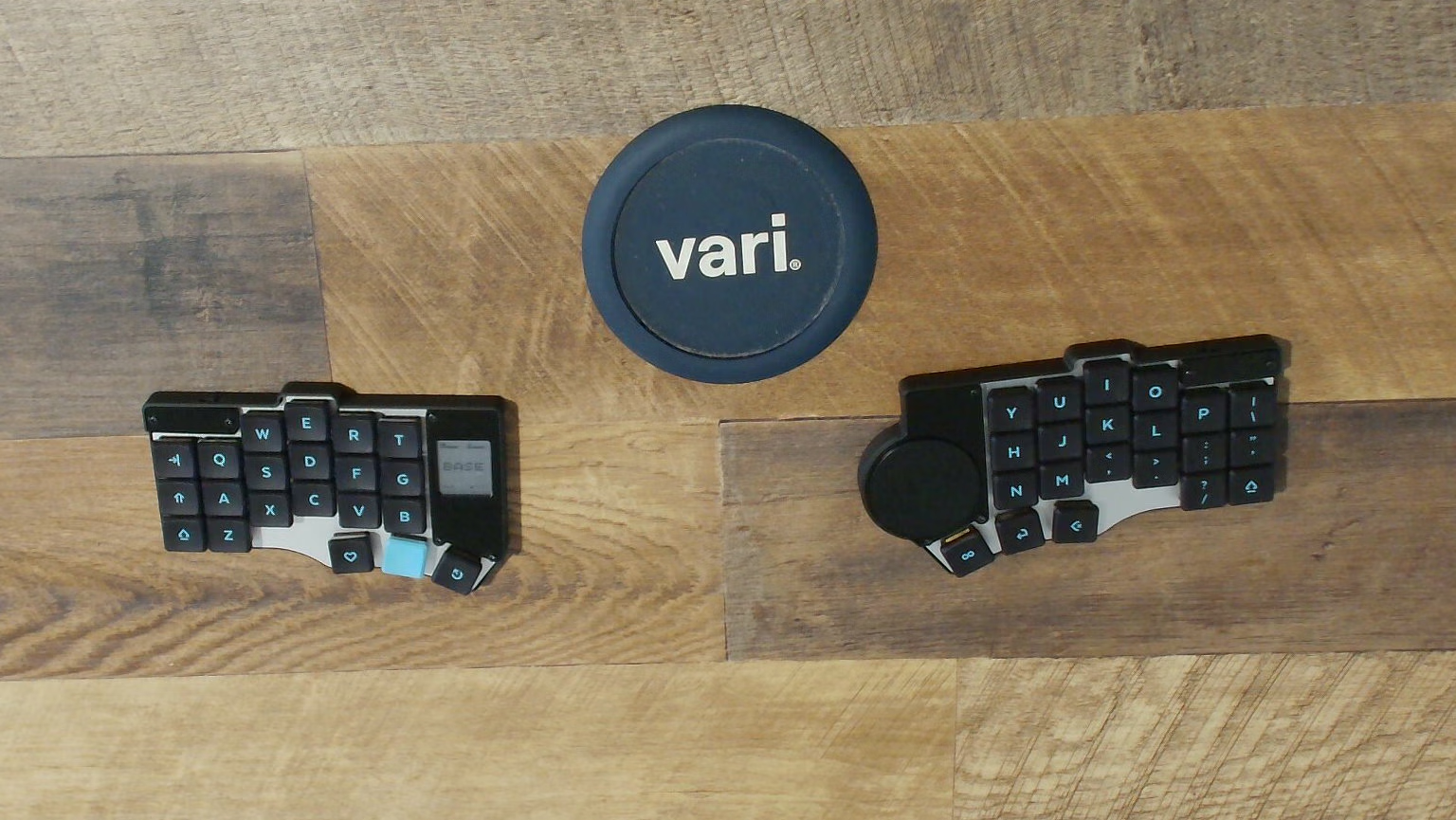
About four months ago, I sent in a pre-order for Beekeeb's latest marvel, the Toucan. It's an iteration on Diego Palacias' cantor design which I've been happily driving daily for years now. Toucan features BLE wireless, a MIPS display on the left hand side with layer state and battery level readouts, and a Cirque touchpad on the rightside, giving the keyboard it's moniker "toucan", or "touch cantor". It also features a slightly more aggressive column stagger, if you're into that kind of thing.
I'm no electronics wiz, in fact prior to this project I've never done any significant soldering. Nonetheless, I decided that saving a few shekels on the pre-built model in in exchange for gaining some new skills was a decent trade off.
The process wasn't without challenges though, so in this post I'll recall some of the screw ups and harrowing near-misses along the way.
First up was the shipping. I live in Israel, so the shipment that went out in late November didn't arrive until Mid-February. That stinks. It's not exactly Leo's fault, but it would be nice for them to offer some more shipping options. The delay did allow me to order all the equipment I'd need though.
Equipment
The DIY build guide on Beekeeb's website lists some basic instructions and tips, but it's not written for absolute beginners. I used one of the major public LLMs to fill in the blanks for a dilettante like me, and this is the shopping list it produced:
- Soldering iron - I chose the TS100 with a BC2 tip - cheap and good enough for the task
- Solder- I purchased a coil of lead-free solder
- Flux - Some cheap flux syringe from Ali
- Solder wick - make sure you have some of this, there will be screwups
- Multimeter - absolutely required for testing continuity, shorts, voltages, etc. I went with the UNI-T UT139-C, which seems capable enough.
- Needle probes - the probes that came with the multimeter are too thick and stubby for fine electronics work. Any cheap pair of gold-plated needle-tipped probes from aliexpress will do. These small, sharp probes allow you to pierce through sticky flux and oxidation, leading to more accurate reads.
- Tweezers - my ifixit "Pro tech toolkit" has enough doodads for this build
- Workmat - I used a silicone cleaning mat with magnetic pads for managing screws.
- Sticky tack / Blutack - Super useful for positioning the PCBs
- Masking tape - helpful to keep the microcontrollers in position while tacking down the castellations
- Safety googles - they're your friend
I didn't get an articulated magnifying glass, but I should have: those diodes are tiny.
The Plan
I consulted with the public LLM and got some tips, above and beyond what the official guide stated:
- For lead-free solder, set the iron to 380℃
- Tin the pads first, adding a small glob of solder to the pad before placing the component
- Don't put the solder on the iron first, instead, heat the pad with the iron, then feed solder onto the pad
- Wash hands thoroughly after working with solder and flux
- Use masking tape and/or sticky tack to hold the PCB to the mat, and larger components like the microcontrollers to the PCB.
The LLM initially advised taking the jobs out of order from the guide - first soldering the M2 screw nuts, then the diodes, then the microcontrollers. I decided not to take that advice, and followed the guide's order instead:
- Flash the microcontrollers
- Solder them
- Solder the diodes
- Then the sockets
- Then the nuts
- Then the battery connectors and power switches
- Assemble the case and pop in the hotswappable switches
I think the hardest part for me was soldering the microcontrollers. The pads are very small and this was the first real soldering work I've ever done so it was a bit nerve-wracking. But I kept my head and followed the plan. Most of the pads are "castellated" meaning they have these half-moon divets, which makes it easier to shove the iron into them and head both the pad and the controller contact.
After that I took to the tiny little diodes. These are directional meaning you have to solder them with a specific side on a specific pad; they're also symmetrical, so you need to pay attention to the markings on their cases to know how to place them. Without a magnifying glass it was extremely difficult to tell which direction they needed to sit in. The approach I took was to carefully examine the first in the plastic tape they come packaged in, and be sure to keep the tape aligned the same way as I worked my way through the diodes. Leo was kind enough to pack in plenty of spare diodes - they tend to fly off and get lost.
After the diodes, the sockets were a walk in the park. Leo designed the board with large socket pads which indeed makes the job go smoother.
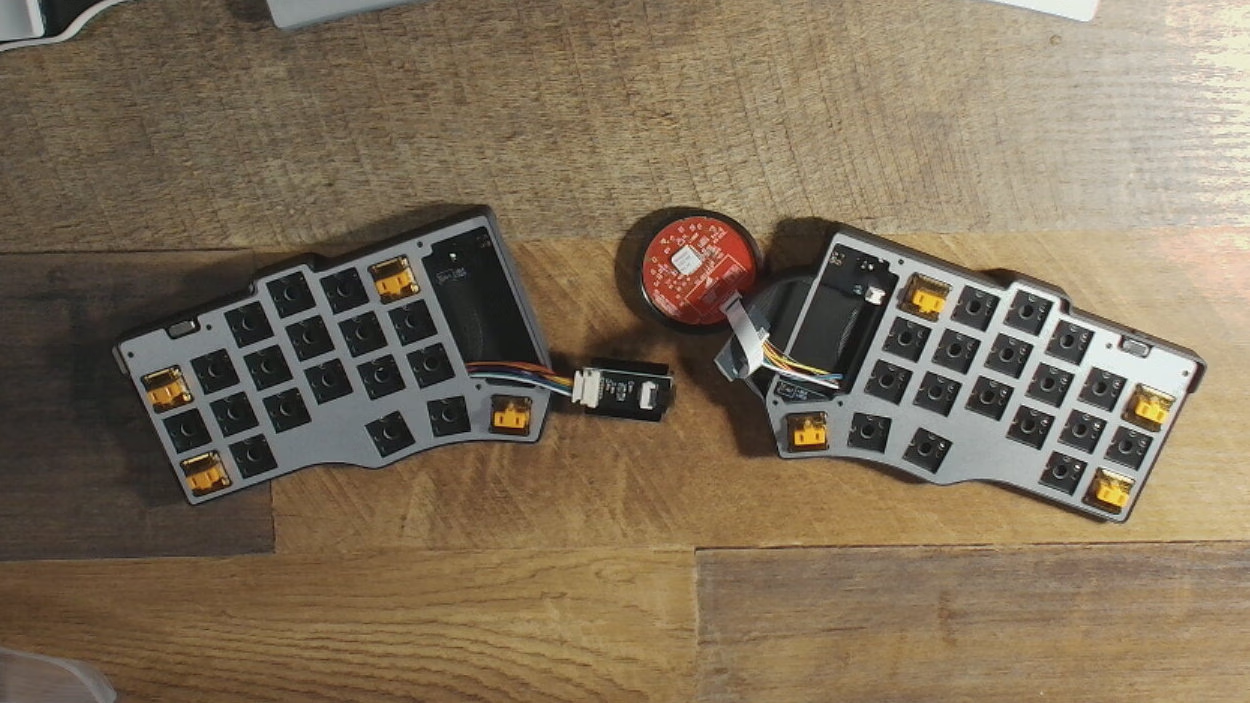
After connecting up all the components I tested over USB. A bunch of the keys were dead, so the LLM tool helped me test the continuity through the circuits to the controller. It was useful to have the controller pinout diagram open in a side tab while reading the LLM's output. I ended up having to reflow the microcontrollers more than once, to make sure all the rows and columns were properly wired up, but eventually I got it settled.
Battery Power
The JST battery connectors were quite finicky to solder in, and not particularly robust, so be gentle with them.
At this point I was ready to test on battery. I ordered some 402030 batteries from AliExpress, according to the specs on the guide, with a 1.25mm JST connector. I was juuuust about to plug one side in when I noticed the wires were the wrong colour. BE CAREFUL here; I almost fried my expensive enthusiast hardware by plugging in a battery with the wrong polarity.
If you also got batteries with the wrong polarity, there are two possible solutions.
- If the JST connectors you got have a flap on the broad side, flip it open, pull out the wires, and reconnect them in the right polarity
- If not, you can cut the wires in the middle and splice them
BE CAREFUL: but one battery wire at a time: cutting both simultaneously may electrically bridge both wires through your scissors, causing a short which can lead to a fire.
I decided to take the batteries downtown to Kassaiof electronics on King George Street in Jerusalem to do the splice. Even though I probably could have done it on my own and insulated with electrical tape, I preferred to have someone more experienced do this, and insulate with heatshrink sleeves.
The Right Side
After I got the batteries home, I plugged them in, and the left side came online! The right side, however, only worked on USB powers. Once again I turned to that public LLM tool to help me test the circuitry. After a few hours of poking at fillets with my multimeter, it issued it's diagnosis: I must have somehow fried the internal fuse on the right side board 😩.
I was crestfallen. After all that time and effort, all that money spent, I was stuck with one half of my "wireless" keyboard requiring wired USB power! At this point though, I reached out to Leo at Beekeeb, explained the issue, along with the voltage and continuity readouts I got at various points:
Voltage Readings (Battery Connected, Switch ON):
- Battery Fillets: 3.7V (Confirmed healthy battery).
- Switch Middle Post: -0.75V (Voltage is not reaching the switch).
- XIAO BAT Pad: 0.1V.
- XIAO 3.3V Pin: 0V.
Continuity Results (Battery Disconnected):
- Battery (+) Fillet to Switch Middle Post: Beep
- Switch Middle Post to ON Post (Switch ON): Beep
Leo replied promptly advising me to check the soldering job on the BAT+ pad, which is on the back of the microcontroller, underneath the PCB. I checked with my phone's camera zoomed in and indeed I could see some golden hue next to the matte grey solder blob, this was a strong hint that I had a cold joint here: the solder failed to electrically connect the microcontroller's BAT+ pad to the PCB's Battery + line. I applied more flux, reflowed the joint, and when I plugged in the battery back in to test it immediately came to life!

The Firmware
As first I tried ZMK's Studio AppImage to configure the layout, but it's really annoying to use - ironically it's heavily mouse based, and there's no import/export so I couldn't use LLM tools to translate my QMK json into ZMK format.
So eventually I cloned beekeeb's firmware repo and ported over my layout that way.
The Build System
Coming from QMK, the ZMK build system is a bit of a culture shock. ZMK is built on top of Zephyr, which uses a tool called west to manage a workspace of interconnected repositories. My workspace ended up looking something like this:
zmk/
├── workspace/          # west workspace root
│   ├── .west/
│   ├── zmk/            # ZMK source (pulled by west)
│   ├── zephyr/         # Zephyr RTOS (pulled by west)
│   ├── config/         # symlinks to my config repo
│   └── build/          # build output
│       ├── left/
│       └── right/
├── toucan-module/      # shield definitions (board overlays, pin mappings)
├── config/             # my repo: keymap, user config, west manifest
└── .venv/              # Python venv for west + dependencies
Each half of the keyboard is a separate build target with its own cmake configuration. The left side (the "central" in BLE terms) gets the display shield and ZMK Studio support; the right side gets the Cirque trackpad driver. A full initial build looks like:
west build -s zmk/app -b seeeduino_xiao_ble -d build/left \
    -S studio-rpc-usb-uart -- \
    -DSHIELD="toucan_left rgbled_adapter nice_view_gem" \
    -DZMK_CONFIG="$PWD/config" \
    -DZMK_EXTRA_MODULES="$HOME/Developer/zmk/toucan-module" \
    -DCONFIG_ZMK_STUDIO=y
That's a lot of flags to remember. And unlike QMK, there's no make flash — you have to manually double-tap the reset button on the microcontroller to enter the UF2 bootloader, mount the USB drive that appears, and copy the firmware file over. When your keyboard is your daily driver, you need a second keyboard just to type the mount and copy commands.
I wrote a fish shell function to automate the whole thing:
toucan build          # build both halves (incremental)
toucan build left     # build just the left
toucan flash right    # wait for bootloader, mount, copy, done
The build command detects whether a cached cmake configuration exists and does an incremental build when possible, only running the full cmake configure on the first build or after deleting the build directory. The flash command polls for the bootloader's USB label to appear, mounts it with udisksctl, copies the .uf2 firmware, and syncs. The bootloader resets automatically after receiving a valid image, so there's no unmount step.
Trackpad Tuning
The Cirque trackpad connects via SPI on the right half and sends relative pointer events over the BLE split link to the left half, which then forwards them to the host as HID reports. There are several layers where you can tune the pointer feel:
- Hardware sensitivity — the Cirque Pinnacle's ADC gain, set via devicetree (
sensitivity = "2x") - Software scaling — ZMK's
zip_xy_scalerinput processor multiplies the raw counts before sending HID reports - OS acceleration — the compositor's pointer acceleration curve (in my case, Niri's libinput-backed
accel-speedsetting)
On a 5K ultrawide, the default settings felt too slow for traversing the full screen width, while also being too imprecise for clicking small UI targets. The solution was to bump the software scaler and let the compositor's adaptive acceleration handle the rest — fast swipes get amplified, slow movements stay precise.
BLE Reliability
The split BLE link between the halves turned out to be the most finicky part of the whole setup. I was getting intermittent dropouts that manifested as stuck or repeating keys — the right half would briefly disconnect mid-keypress, and the left half would keep sending the last key state until it timed out. Increasing the BLE TX power to +8 dBm and enlarging the key event queues on both sides helped stabilize things.
I'm still not 100% settled on the trackpad configuration, it'll take a bit of getting used to. But so far I'm really enjoying it.
For the next iteration
The toucan's design is minimalistic, portable, and pleasant. Having both halves wireless really opens up possibilities and unclutters the desk. For future iterations, I'd like to see a multitouch trackpad, with a physical click, instead of touch-tap, as well, a diodeless PCB would be nice, since those little suckers are a pain.
I'm glad I went the DIY route, despite the stress and the wait. I gained experience and confidence in a new skill and now I have bragging rights to lord over my friends and neighbours 😅. Try it yourself some time!